Ulysse Speedometer Pro
binarytoysAuto & Vehicles
3.4914.00 Reviews
- Version
- Varies With Device
- Installs
- 100.00K
- Age Rating
- Everyone
Screenshots
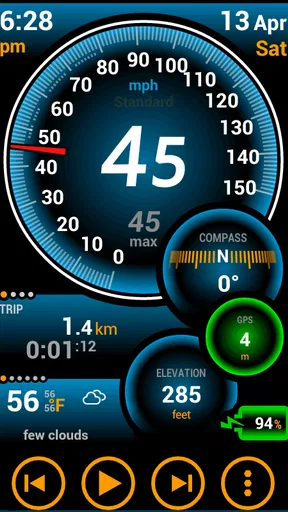
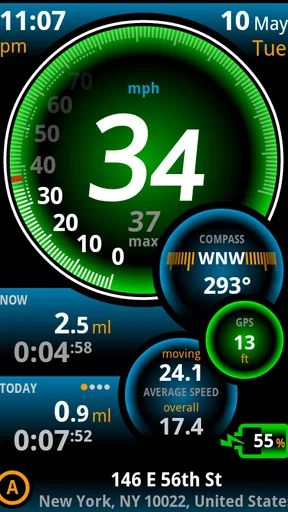
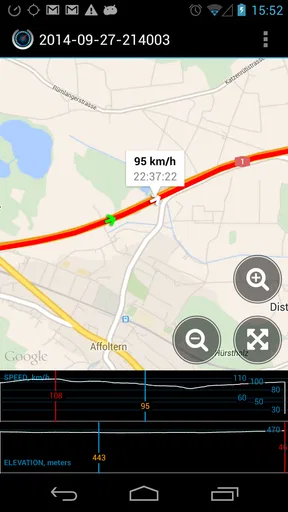
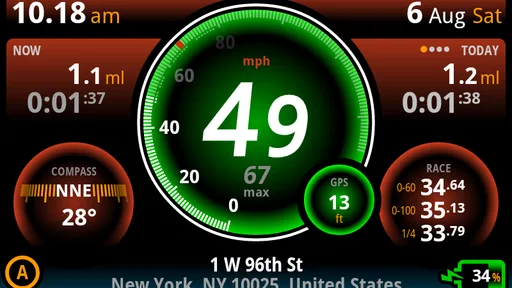
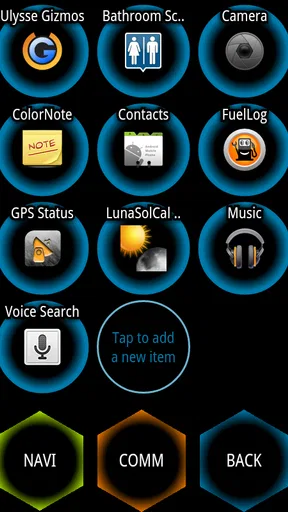
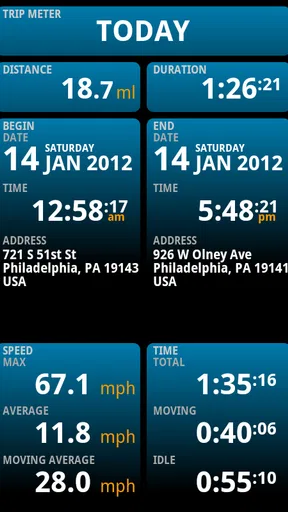
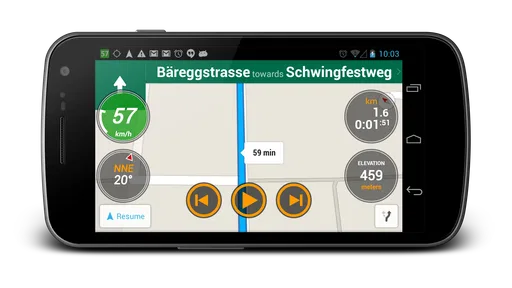
Our Review of Ulysse Speedometer Pro
 Analysis by Appyee
I tested Ulysse Speedometer Pro as a focused driving companion rather than as a complete navigation system. That distinction matters from the first minute: this is an app in the Auto & Vehicles category, built by binarytoys, and its job is to make speed information easier to see while you are on the road. I found the idea appealing because many drivers do not need another map, route planner, or collection of travel tools. They simply want a clear speedometer that can sit in view and support safer driving habits.
The app costs $1.99 and is rated for Everyone, so it is positioned as an inexpensive utility for a broad audience. It has been available since May 12, 2011, and its long presence is reflected in a community of over 4,000 ratings and more than 900 written reviews. Its average rating is 3.4, with over 100,000 installs. That combination suggests a useful but not universally satisfying tool: plenty of people have tried it, yet the experience depends heavily on what you expect from a dedicated speedometer.
From a simple need to a usable driving routine
I find that the most useful way to judge a dedicated speedometer is to separate the job of displaying a reading from the job of guiding a journey. That distinction helps me decide whether a focused screen will actually make a drive simpler or whether I need the broader context of navigation instead. It also sets up the next question: how well does this lightweight routine hold up when driving gets busier?
Starting with the right expectation
My starting condition was straightforward. Imagine getting into a car whose built-in dashboard is difficult to read, sitting in a vehicle where the speed display is placed awkwardly, or using a bicycle, scooter, or other vehicle without a convenient speed readout. In that situation, a phone can become a secondary display. Ulysse Speedometer Pro is most useful when you treat it that way: a compact visual aid, not a replacement for every instrument in the vehicle.
That focus is also its main strength. A conventional navigation app usually gives the speed reading a small place among maps, directions, traffic information, search controls, and alerts. Those tools are valuable when I am planning a route, but they can make a speed display feel secondary. Here, the speedometer is the reason to open the app, so the workflow begins with one clear question: can I check my current speed quickly without searching through a crowded screen?
I would recommend setting it up before moving, not after pulling onto a busy road. The sensible routine is to place the phone where it can be seen with a brief glance, start the app while parked, and make sure the display is comfortable for the conditions. This is not just a matter of convenience. Any phone mounted in a poor position can become a distraction, and a speedometer app is only helpful when it reduces attention demands rather than creating new ones.
The first step: turning the phone into a secondary instrument
The practical flow is easy to understand. I open the app before departure, position the phone, and use the large speed readout as a quick reference while traveling. The phone then acts as a handoff between the vehicle and my eyes: the vehicle provides movement, the app presents a visual reading, and I return my attention to the road. That sounds simple, but the quality of the experience depends on how quickly the display can be interpreted.
A dedicated speedometer has an advantage over a map-based alternative here. I am not waiting for a route to load or trying to distinguish a speed figure from a busy navigation screen. For a short trip across town, a test ride, or a vehicle with an inconvenient dashboard, that narrower purpose feels sensible. It also makes the app easier to understand for someone who does not want to learn a larger driving platform.
There is a useful trade-off in this simplicity. The app can support a speed-checking routine, but it does not replace the driver’s responsibility to observe the road, signs, traffic, and the vehicle’s own instruments. I would use the phone display as an additional reference, especially when the built-in speedometer is hard to see, rather than treating it as the sole authority for driving decisions.
How I would use it during an everyday trip
Consider a realistic evening commute in an unfamiliar car. The dashboard speed display is low and partly hidden by the steering wheel. Before leaving a parking space, I place the phone in a stable, visible position and open Ulysse Speedometer Pro. During the trip, I use short glances to check whether my pace is drifting upward on a broad road. When I reach a junction or a complicated traffic area, I stop relying on the phone and give the road situation my full attention.
That workflow shows where the app earns its place. It does not need to manage the whole journey to be useful. It can simply provide an extra visual reference during the parts of a drive where the dashboard is awkward. At the end of the trip, I close it rather than leaving the phone running as a permanent driving accessory. That habit keeps the app in a supporting role and avoids turning a small utility into another source of screen dependence.
I can also see a use for riders who want a speed display on a vehicle that does not have one, provided the phone can be mounted securely and viewed safely. The same caution applies even more strongly there: road conditions, balance, weather, and traffic deserve priority over any screen. The app may make the speed information available, but it cannot make an unsafe mounting position safe.
The handoff between app, vehicle, and driver
The most important handoff is not technical; it is behavioral. The app presents information, but the driver decides when it is appropriate to look. I found that the cleanest routine is to check the display only at natural moments, such as a straight, open section of road, and to ignore it completely when steering, braking, turning, or dealing with unexpected traffic. That approach makes the app less intrusive than a navigation tool that continually asks for interaction.
There is another handoff when a passenger is involved. A passenger can help place the phone before departure and adjust it while the vehicle is stopped, but I would not ask a driver to reposition the device while moving. This sounds obvious, yet it is exactly the kind of small friction that determines whether a driving utility feels responsible in everyday use. The best setup is the one that needs no adjustment once the trip begins.
The app also sits beside the vehicle’s own speedometer rather than replacing it. If the two readings appear different, I would not make a sudden decision based on the phone. I would slow down appropriately, keep attention on the road, and treat the difference as a reason to investigate the setup later. Phone-based readings can be affected by positioning, movement conditions, or the way the device is being used, so the app should remain a helpful cross-check instead of an excuse to disregard the car’s instruments or posted limits.
What the workflow delivers
The result is a more direct driving display. I open one app for one purpose, glance at the speed information, and continue driving without the visual clutter associated with a full navigation package. That is the strongest argument for this purchase. At $1.99, it is inexpensive enough to consider when the specific problem is visibility or convenience rather than route planning.
The app’s age is also interesting. Having been released in 2011, it belongs to an earlier generation of mobile utilities that often tried to do one job clearly instead of bundling every possible travel function. I appreciate that focused character. On the other hand, a long-running app may feel less aligned with modern expectations around phone displays, mounting habits, vehicle integrations, and polished interface design. I would judge it by whether the core reading is comfortable and dependable on my device, not by expecting the same breadth as a current navigation suite.
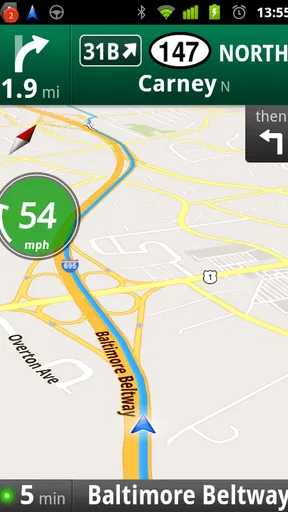
For a driver who already uses a reliable built-in dashboard and wants turn-by-turn directions, the usual navigation app is the better choice. It combines route guidance with a speed indication and is already part of many people’s travel routine. For someone who wants a dedicated speed-focused screen, however, that broader option can be excessive. The choice comes down to whether the missing feature is speed visibility or navigation itself.
Three practical decisions that improve the experience
First, I would decide on the mounting position before opening the app. A display that is technically visible but requires a long glance is not a good setup. The best location is one that lets me read the speed with minimal eye movement while leaving the windshield view and essential controls unobstructed. If that position cannot be achieved safely, I would skip the phone display altogether.
Second, I would use the app as part of a pre-drive checklist rather than as something to configure on the move. Place the phone, start the display, confirm that it can be read, and then put the phone down. This workflow reduces the temptation to interact with it during the trip and is more useful than repeatedly trying to improve the arrangement after driving has begun.
Third, I would compare its usefulness against the actual problem I am trying to solve. If I only need occasional speed confirmation, the app may be a neat low-cost tool. If I need speed warnings, route guidance, trip planning, vehicle diagnostics, or a full record of travel, I would look for a different category of app instead. Buying a focused speedometer and expecting it to become a complete driving assistant is the quickest way to be disappointed.
Where the flow breaks down
The workflow breaks when the phone becomes more distracting than the dashboard. A bright screen, an awkward mounting angle, or the need to touch the device can undermine the safety benefit. I would also avoid using it as a reason to keep looking down during dense traffic. The app can show a speed reading, but it cannot judge road conditions or tell me when a glance is safe.
It may also be the wrong choice for people who want a polished, all-in-one driving experience. A navigation app is better when the journey depends on directions, destinations, and traffic context. A vehicle-specific display is better when the driver needs information integrated directly into the car. Ulysse Speedometer Pro makes most sense in the gap between those options: when a standalone speed readout is useful and the phone can be positioned responsibly.
The average rating of 3.4 gives me a balanced impression rather than a reason to dismiss it. With over 100,000 installs, it has clearly found an audience, but the rating also warns me not to assume that every phone, vehicle, or mounting arrangement will produce the same result. The app is inexpensive, yet the real cost is still the effort of setting up a safe viewing position and accepting that it has a narrow purpose.
My recommendation after following the complete routine
I would recommend Ulysse Speedometer Pro to a driver who wants a straightforward secondary speed display and is comfortable preparing the phone before moving. It is especially appealing when the vehicle’s dashboard is hard to read or when a simple speed-focused screen is preferable to a busy navigation interface. The low purchase price makes it an easy utility to consider for that specific need.
I would skip it if I expect navigation, advanced driving analysis, integrated vehicle information, or a system that can replace the car’s own instruments. I would also skip it if I cannot mount the phone without blocking visibility or encouraging frequent glances. In those situations, the usual built-in display or a broader navigation solution is the more sensible answer.
My final view is that binarytoys has delivered a narrowly defined driving tool whose value depends on disciplined use. It does not need to do everything to be worthwhile. When the starting problem is simply “I need a clearer speed reference,” the flow from setup to quick glance to continued driving is easy to understand. When the problem is larger than that, the app’s limits become just as clear. Its best feature is the focused workflow, but its usefulness ends where a complete driving system begins.
Verdict
Strengths of Ulysse Speedometer Pro
- Large, easy-to-read speed display is useful while driving.
- Supports multiple speed units for different regional preferences.
- GPS-based readings require no dedicated vehicle sensor.
- Trip information helps monitor distance and travel time.
- Works well as a simple dashboard companion on road trips.
Limitations of Ulysse Speedometer Pro
- GPS accuracy can drop in tunnels, cities, or areas with weak signal.
- Continuous GPS use may noticeably reduce battery life.
- Some vehicle dashboards may make the phone difficult to position safely.
- Speed readings can lag briefly during rapid changes in movement.
- The Pro version may offer limited value for occasional drivers.
Similar Picks in This Category
View All
Android Auto
Google LLC4.1

maxim — order a taxi & food
PT. SITO4.7

Штрафы ГИБДД: проверка с фото
Pays LLC – Штрафы ГИБДД4.7

Номерограм – проверка авто
Авто Ассист4.8

Дром Авто
Дром4.9

Frequently Asked Questions
What is Ulysse Speedometer Pro used for?
Ulysse Speedometer Pro is a GPS-based dashboard app designed to display your current speed, direction, altitude, distance, and other travel information in real time. It can be useful in a car, on a motorcycle, bicycle, or during outdoor activities. After testing the interface, its main strength is the amount of information available without requiring a separate physical speedometer, although accuracy depends on GPS reception.
Does Ulysse Speedometer Pro work without an internet connection?
The app can generally measure speed and several travel statistics through your device’s GPS without a continuous mobile data connection. However, GPS must still be enabled, and the first location fix may take longer in some situations. Features that depend on online maps, location searches, traffic information, weather data, or external services may require internet access. Performance can also be affected by buildings, tunnels, trees, and poor satellite visibility.
How accurate is the speed reading in Ulysse Speedometer Pro?
Speed readings are calculated from GPS data, so they can be quite useful while moving steadily in an open area, but they should not be treated as a certified replacement for a vehicle’s factory speedometer or official measuring equipment. Accuracy may fluctuate during acceleration, at very low speeds, or when the signal is weak. For safe driving, always follow your vehicle’s dashboard and posted speed limits.
What permissions and device features does Ulysse Speedometer Pro require?
Ulysse Speedometer Pro needs location permission to obtain GPS coordinates and calculate speed, distance, direction, and related measurements. Depending on the version and the features you use, it may also request permission for notifications, background location, or other system functions. It is worth reviewing the permission screen carefully and allowing background access only if you need tracking while the display is locked or another app is open.
Is Ulysse Speedometer Pro suitable for everyday driving and long trips?
The app can be convenient for everyday driving, cycling, motorcycling, or road trips because it provides a customizable digital dashboard with travel data at a glance. Before relying on it, mount the phone securely, adjust brightness and display settings, and test the GPS signal in a safe place. Avoid interacting with the app while driving, and remember that prolonged GPS use can increase battery consumption and device heat.
